Adding a New Stream
1. Navigate to Streams in the sidebar
2. Click the Add Stream button
3. Fill in the stream details:
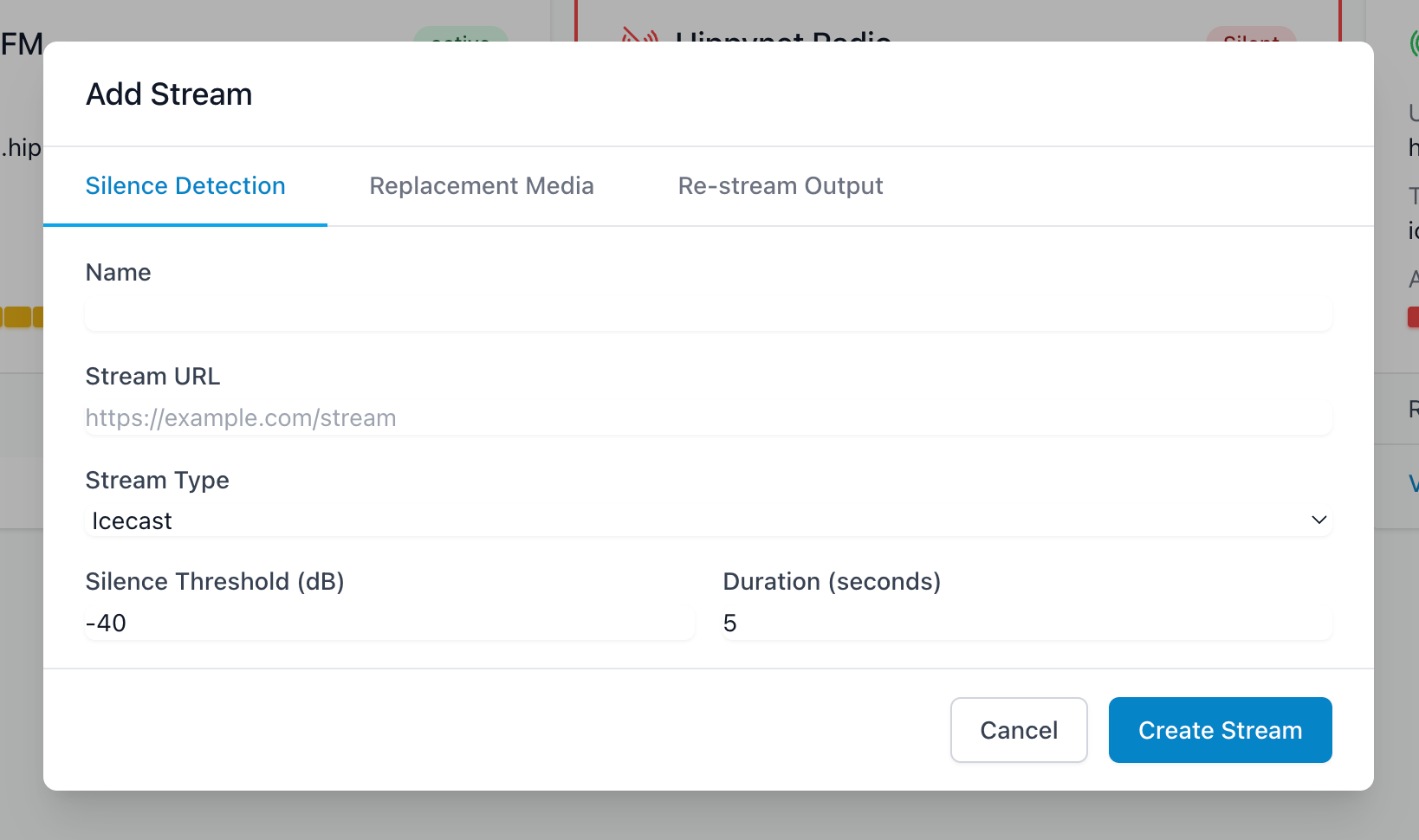
Basic Settings
| Field | Description |
| Stream Name | A friendly name to identify your stream (e.g., "Main Studio Feed") |
| Stream URL | The full URL to your audio stream (e.g., `https://stream.example.com/live`) |
| Stream Type | Select Icecast, Shoutcast, or HLS |
| Silence Threshold | Audio level (in dB) below which audio is considered silent. Default is -50 dB. |
| Silence Duration | How many seconds of silence before triggering an alert. Default is 10 seconds. |
Understanding Silence Detection
- Silence Threshold: Audio quieter than this level is considered "silent". A typical setting is -50 dB. Set this higher (e.g., -40 dB) if you want to catch low audio, or lower (e.g., -60 dB) if your stream has quiet passages.
- Silence Duration: The system waits this long before declaring a silence event. This prevents false alarms from brief pauses. 10 seconds is a good starting point.
Replacement Audio
When silence is detected, you can automatically play replacement audio to keep your stream alive.
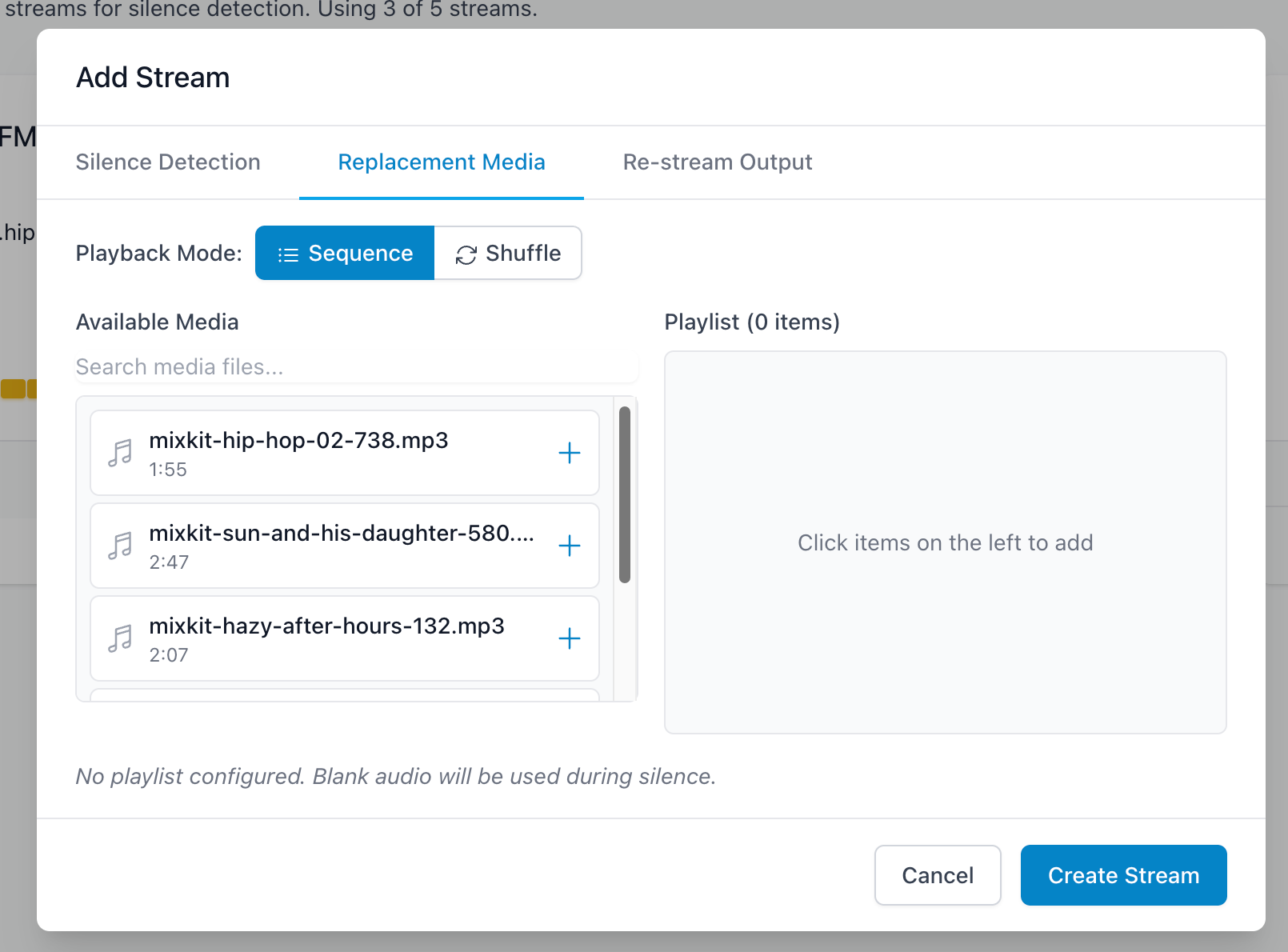
Enabling Replacement Audio
1. Toggle Enable Replacement Audio to on
2. Choose your replacement source:
-Single File: Select one audio file to play on loop
-Playlist: Select multiple files to play in sequence or shuffled
Playlist Options
| Option | Description |
| Sequence | Plays files in the order shown, then loops |
| Shuffle | Plays files in random order |
Use the drag handles to reorder files in your playlist.
Output Streaming
Re-broadcast your monitored stream (with silence replacement) to your own Icecast or Shoutcast server.
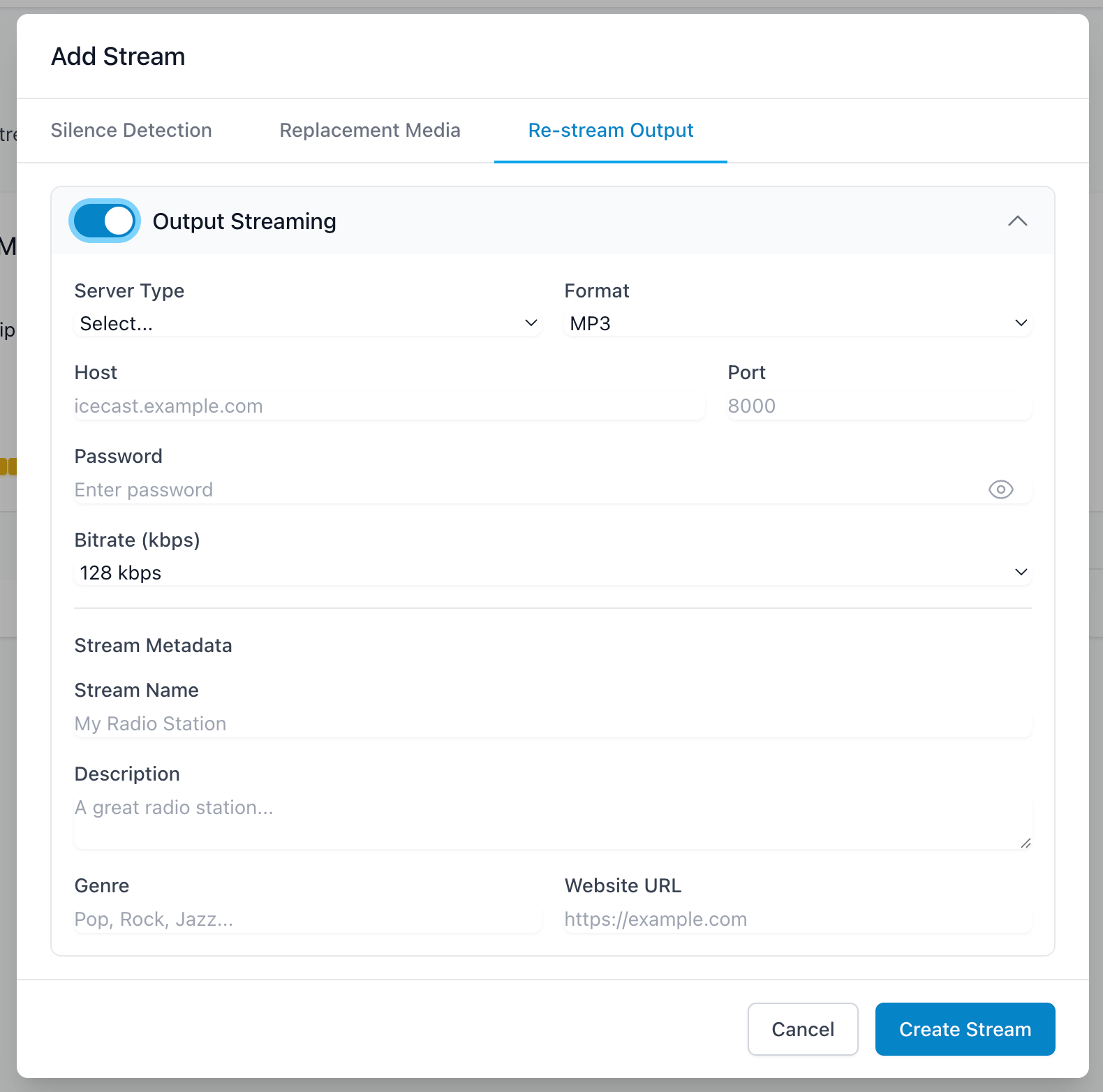
Setting Up Output Streaming
1. Toggle Enable Output Streaming to on
2. Select your Server Type (Icecast or Shoutcast)
3. Enter your server details:
| Field | Description |
| Host | Your streaming server hostname (e.g., `icecast.example.com`) |
| Port | Server port (typically around 8000 for Icecast) |
| Mount Point | Icecast only - the mount point path (e.g., `/live`) |
| Username | Usually "source" for Icecast |
| Password | Your source/streaming password |
Stream Metadata (Optional)
| Field | Description |
| Stream Name | Title shown to listeners |
| Description | Stream description |
| Genre | Music genre or content type |
| Website URL | Your station's website |
Encoding Settings
| Field | Description |
| Format | MP3, AAC, or Ogg Vorbis |
| Bitrate | Audio quality (64-320 kbps). Higher = better quality but more bandwidth |
Editing a Stream
1. Go to Streams
2. Click the Edit button (pencil icon) on the stream you want to modify
3. Make your changes
4. Click Save
Deleting a Stream
1. Go to Streams
2. Click the Delete button (trash icon)
3. Confirm the deletion
Note: Deleting a stream also removes all associated alerts and event history.
