Alerts notify you when silence is detected on your streams.
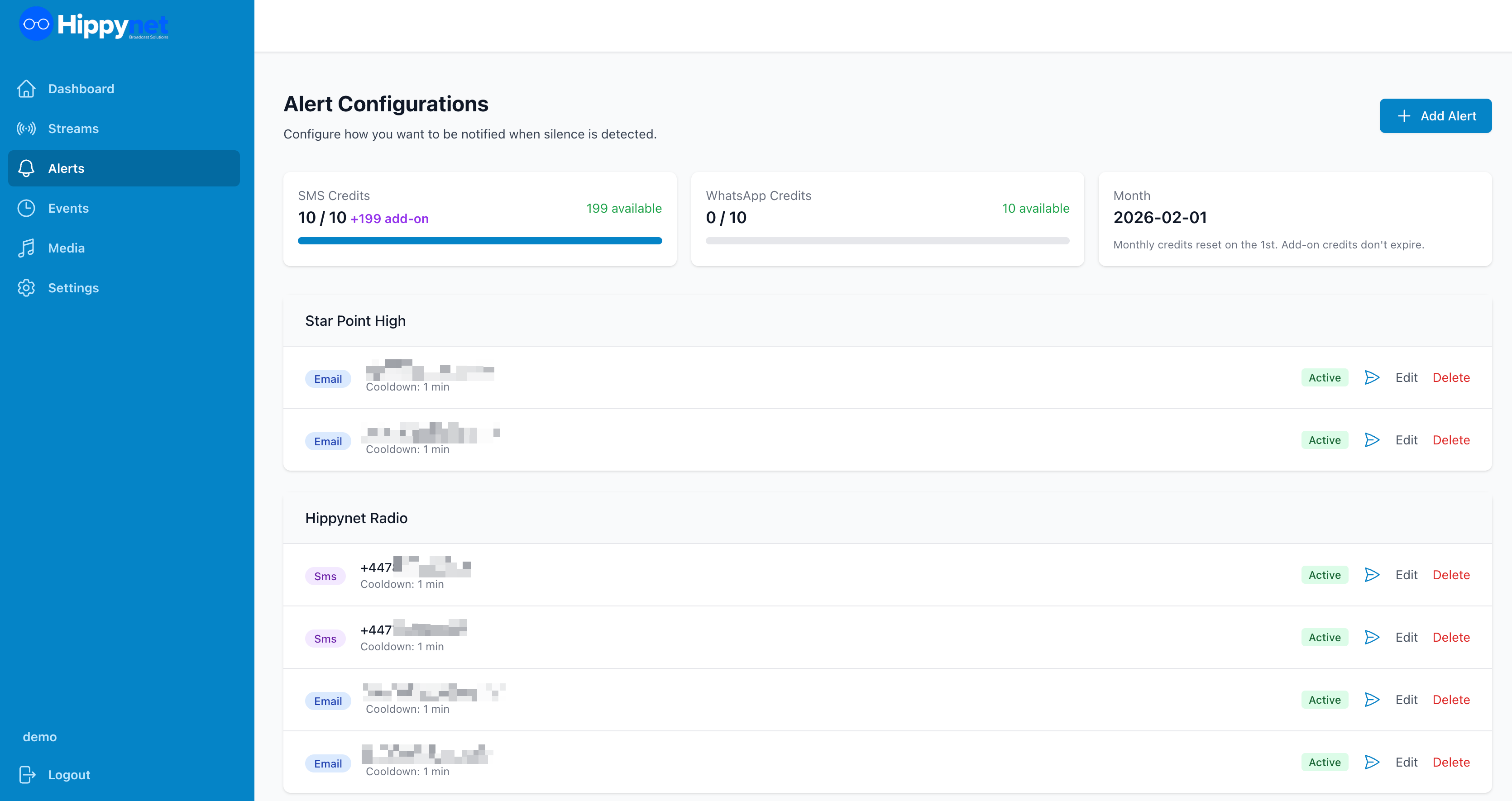
Alert Types
| Type | Description |
| Sends an email to the specified address | |
| SMS | Sends a text message to your phone |
| Sends a WhatsApp message | |
| Webhook | Sends data to a URL (for integrations with Slack, Discord, etc.) |
Creating an Alert
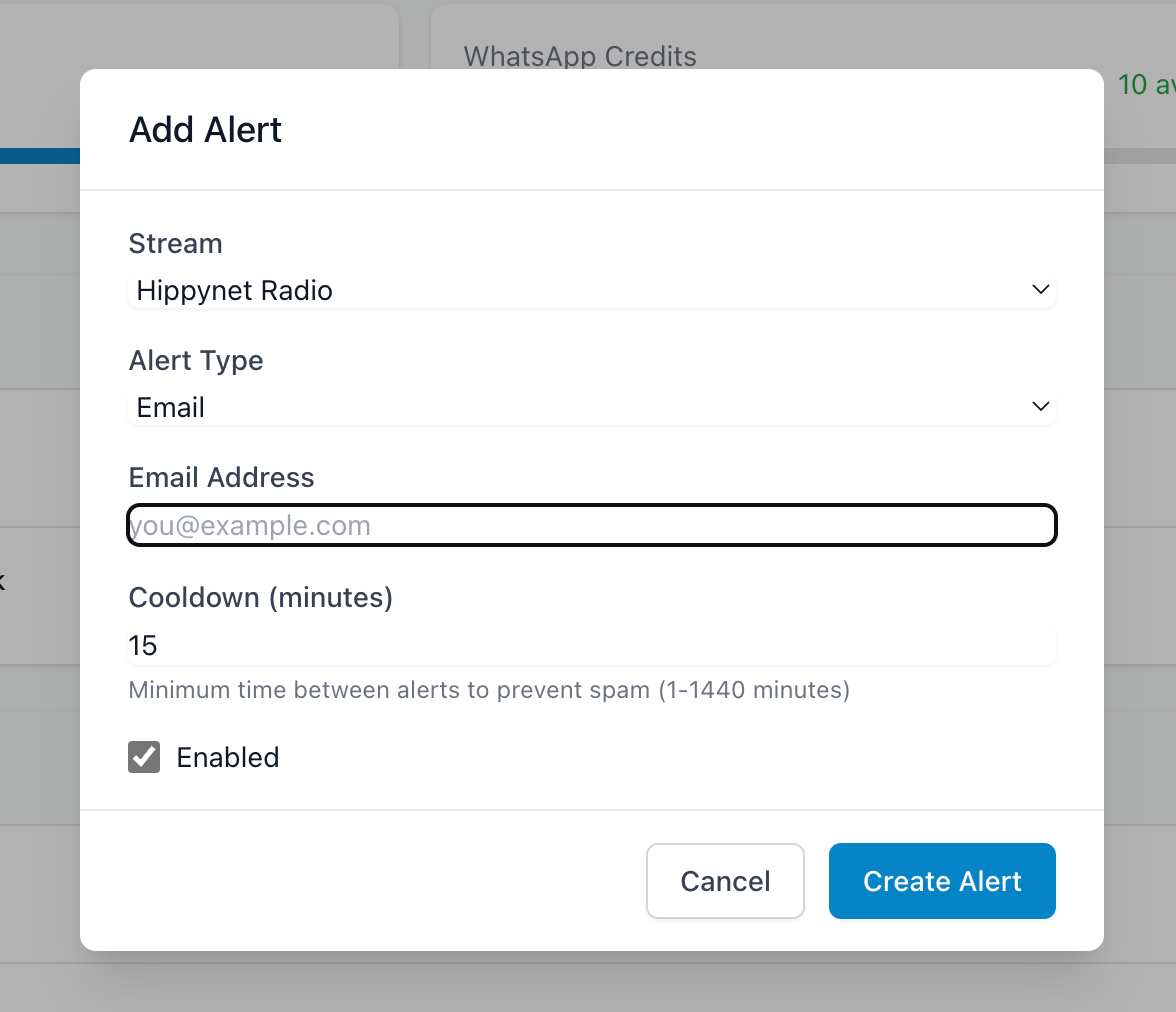
1. Navigate to Alerts in the sidebar
2. Click Add Alert
3. Select the Stream to monitor
4. Choose the Alert Type
5. Enter the Recipient (email, phone number, or webhook URL)
6. Configure additional options
7. Click Save
Alert Options
For All Alert Types
| Option | Description |
| Enabled | Toggle alerts on/off without deleting them |
| Cooldown | Minutes to wait before sending another alert for the same stream. Prevents alert spam. Default: 15 minutes |
For SMS and WhatsApp
Phone numbers must be in international format starting with + (e.g., +447123456789)
For Webhooks
| Option | Description |
| Format | Generic JSON, Slack, or Discord |
| Secret | Optional security key for HMAC signing |
Webhook Formats
Generic JSON - Simple format for custom integrations:
```json{"event": "silence_detected","stream": "My Stream","timestamp": "2026-02-05T12:00:00Z","audio_level_db": -65.2}```Slack - Rich message with colour-coded attachments, perfect for Slack Incoming Webhooks.
Discord - Embedded message format for Discord webhooks.
Testing Alerts
1. Click the Test button next to any alert
2. A test notification will be sent immediately
3. Check that you received it correctly
SMS and WhatsApp Quotas
Your account includes a monthly allowance of SMS and WhatsApp messages. View your remaining quota at the top of the Alerts page.

- Monthly quota resets at the start of each month
- Add-on credits (if purchased) never expire and are used after your monthly quota is exhausted
